
WordPress Basics screencasts
Tags:
Mike Wiggins put together a couple new screencasts that may help new WordPress users working with the text editor and adding images to their blog.
 Publishing a Post (14 min)
Working with Images (9 min)
A collaborative project between academic technology and IT providing tools to support the way we live, work, and learn.



Mike Wiggins put together a couple new screencasts that may help new WordPress users working with the text editor and adding images to their blog.
Publishing a Post (14 min)
Working with Images (9 min)
Developers over in Web Integration and Programming have spent hours this week helping us identify and resolve a number of issues. Thanks to individual faculty who have reported issues and helped in the troubleshooting process. If you’re seeing something strange, please report it to helpdesk@acu.edu and include what operating system you’re using, which browser you saw the issue in, and which blog we might look at for an example of the problem.
Here is a quick update of known issues we are working on.
The About/Intro text in the black box doesn’t like quotation marks and some other punctuation. The obvious solution is to avoid some punctuation, but there is a fix if you don’t mind adding HTML special characters. Just replace the misbehaving mark with a short code such as " for a quotation mark.
The Embed code from web sites like YouTube isn’t working consistently, so for now you need to link directly to content on other sites. We’re testing a fix, but the process shown on WordPress.tv works, though the result won’t be a viewer window but a clickable link.
Embedding YouTube Videos into Your WordPress Posts
If you are using the Minimal Header in the ACU Blogs theme, make sure you leave “Show Blog Title” set to Yes. The Minimal header would be hard to use without the blog title, but selecting to hide the title on the minimal header breaks all links in your blog temporarily. Changing back to Show Blog Title should resolve the problem.
I mentioned this in the post yesterday, but adding images wider than 500 pixels will only show the portion of the image in the main column. You can ensure that uploaded images are resized appropriately by changing the Image Size number for Large image maximum width to 490 pixels. (*See the Post by Email note on the Image Template setting in Postie if you plan on uploading images by email.)
Remember that Gmail’s upload limit for attachments is 25mb. Given that the total allowance for your class blog is 100mb, this shouldn’t be a problem, but if you’re uploading content from a iPhone or iPod touch here are a couple considerations.
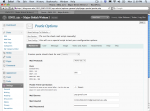 Now that you’ve had a week to find your way around the WordPress Dashboard, you may be ready to try out post by email. This was one of the key features faculty in the blog pilot last spring wanted to bring over to ACU Blogs. Post by email is a great way to publish content quickly:
The following screencast will introduce you to Postie, the WordPress plugin that handles post by email, along with the main settings that give you more control over who can (and can’t) use the class blog email address.
Post by Email with Postie (8 min)
In the screencast, I mention a small problem with the current image attachment settings. Postie handles images fine, adding them to the appropriate post, but you may notice a hiccup in the way image borders are displayed. Here are a couple changes that should iron things out:
Let me know if you have any other questions about post by email.
 Our friend Mike Wiggins has taken time he didn’t have the week before classes start to make life easier for new blog owners. He is the designer of our ACU Blogs theme and has put together two screencasts introducing the first-time setup and use of a custom widget he designed for your sidebar.
Basic Blog Setup for ACU Blogs
Custom Navigation Widget for ACU Blogs
In the coming weeks, we’ll be spotlighting additional features like post by email or the mobile interface in follow-up screencasts. Thanks again to Mike for his help.